.png?width=210&height=60&name=zitadel-logo_text-dark%20(1).png)
The ZITADEL Customer Portal is used to manage all your different ZITADEL instances. Instances are containers for your organizations, users, and projects. A recommended setup might look like the following:
-
Instance: "Dev Environment"
-
Instance: "Test Environment"
-
Instance: "Prod Environment"
In the free subscription model, you have one instance included. To add more instances, please upgrade to ZITADEL Pro.
Overview
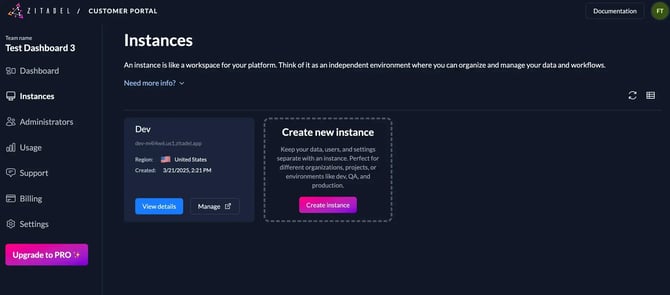
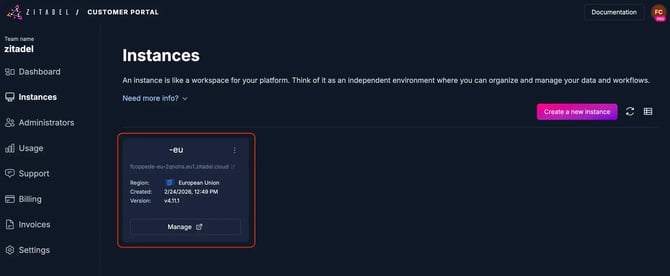
The overview shows all instances registered to your account. You can immediately see the Custom Domain and data region. Click on an instance to view its specific details.
Creating a New Instance
Click the New button above the instance table to create a new instance.
-
Enter the name of your new instance.
-
Add credentials for your first administrator:
-
Administrator Username (prefilled)
-
Password
-
-
Instance Created! You can now see the details of your first instance.
Note: Every new instance receives a generated domain in the format:
[instancename][randomnumber].zitadel.cloud
Instance Details
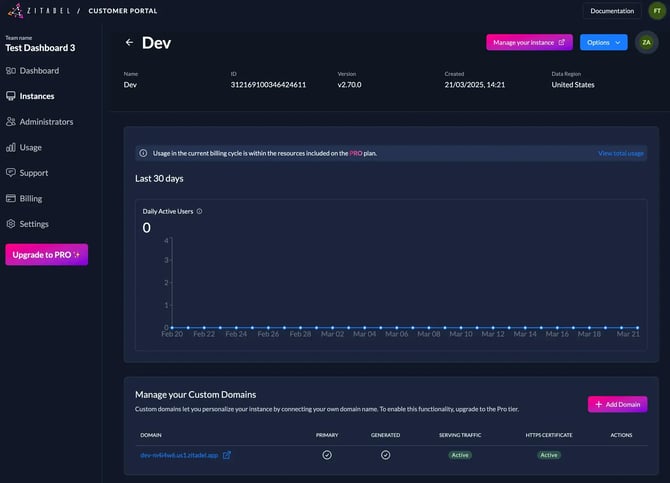
The detail view shows general information about your instance, its region, and your current usage.
Upgrading to Pro
Your first instance is included in the free tier. You will need to upgrade to the Pro subscription if you want to create a second instance or use "Pro" features (such as choosing a specific data region).
To upgrade, you must provide your billing information. If you hit a limit within the free tier, you will automatically be prompted to add a payment method and subscribe to the Pro tier. You can also upgrade manually at any time:
-
Click the Upgrade to PRO button in the menu or navigate to the Billing section.
-
In the Billing menu, you will see your current Free plan; click Upgrade to Pro.
-
Add the required data:
-
Payment Method: Credit Card information.
-
Customer Details: At minimum, you must specify your country.
-
-
Save the information.
Adding a Custom Domain
We recommend registering a Custom Domain to access your ZITADEL instance. The primary Custom Domain will serve as the issuer of the instance. While you can use other domains to access the instance, the primary domain is the most critical.
-
Navigate to the Instances tab.
-
Click on the instance box to open the detailed view.
-
Scroll down to the Custom Domains section.
-
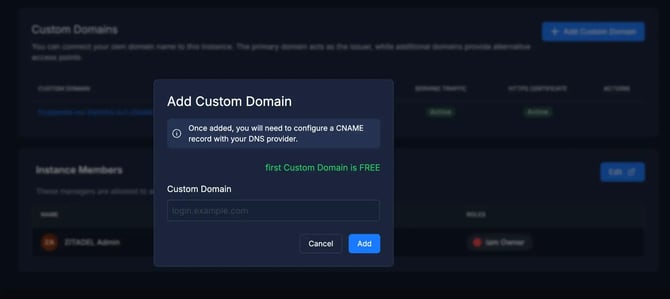
Click + Add Custom Domain.
-
Enter the desired domain.
-
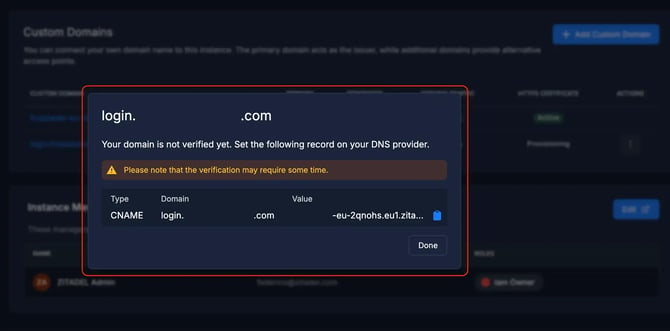
The next screen will provide the information you need to add to your DNS provider to verify ownership.
Important Impacts of Changing Your Primary Domain:
-
URLs & Issuers: You must update the URLs and issuers in your connected applications.
-
Passkey Authentication: Passkeys are domain-based. If you change the domain, users will not be able to log in with previously registered passkeys.
Verifying Your Custom Domain
Once you have added your Custom Domain, you must verify it by adding a CNAME record to your DNS provider.
-
Go to your DNS provider's management console.
-
Add a new CNAME record (find the target value on your instance’s detail page).
-
After adding the record, wait for the domain to be verified (this can take some time).
Please note: Do not delete the verification record. The ZITADEL Customer Portal re-checks domain ownership periodically. Once verified, you can use your Custom Domain to access your ZITADEL instance.