.png?width=210&height=60&name=zitadel-logo_text-dark%20(1).png)
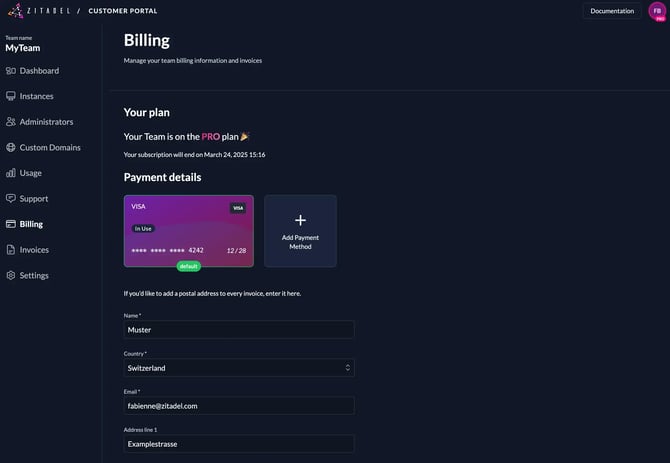
The Billing page displays your configured payment methods and your invoice history.
Payment Methods
Click the "+" button to open a popup with the fields required to add a new payment method. Currently, we exclusively support credit card payments. Once a payment method is configured, you can select it directly during the instance creation process.
Customer Information
To ensure accurate billing, we require the following customer details:
-
Name
-
Country
-
Email Address
-
Address Lines 1 & 2
-
Postal Code & City
Tax ID
If available, enter your tax ID type and VAT number. This will be displayed on your invoices.
Reverse Charge
When you enter a Tax ID, we automatically calculate taxability. Depending on your billing address, we will mark the invoice as Reverse Charge where applicable.
Updating Billing Information
You only need to provide billing information if you wish to upgrade to the Pro Tier. There are two ways to add your billing info:
-
Navigate to the Billing menu and add a new payment method.
-
Add your billing information directly during the upgrade process.
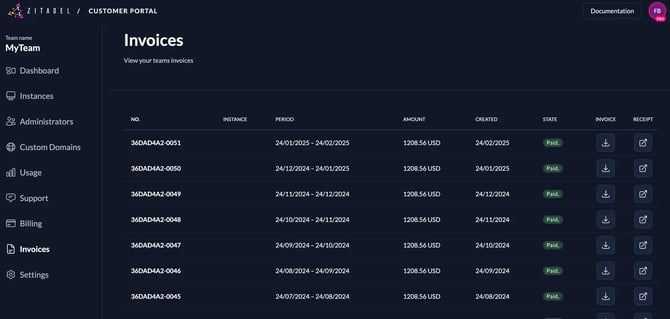
Invoices
All your invoices are listed in the Customer Portal, where you can view and download them directly.